

You just want to press a button and start playing. Instead, your Connectivity HSSGamePad is blinking, your phone isn’t finding it, or the connection was fine yesterday and now it keeps dropping mid-match. That gap between “should just work” and “why won’t this pair” is exactly what connectivity HSSGamePad problems come down to and almost all of them trace back to one of three connection modes not being set up quite right.
The Connectivity HSSGamePad line is built around a simple idea: one controller, multiple devices. Depending on the model, it can pair over Bluetooth, run through a 2.4GHz USB dongle, or plug in with a straight USB cable which is genuinely useful, but it also means there are three different things that can go slightly wrong, and three different fixes depending on which one you’re using.
This guide walks through how each connection mode actually works, how to set it up correctly the first time on Android, iOS, Windows, and Smart TVs, and what to do when it stops working. It also covers a couple of things most gamepad guides skip entirely like the difference between input modes that can silently break button mapping, and how to tell a hardware fault from a software one before you waste an hour re-pairing something that was never going to connect.
What “Connectivity HSSGamePad” Actually Means
“Connectivity HSSGamePad” refers to how the controller talks to whatever device you’re playing on the hardware radio, the pairing process, and the drivers or OS-level Bluetooth/HID stack that turns your button presses into inputs the game can read. It’s not one single feature; it’s the combination of three separate connection paths built into the controller:
- Bluetooth mode — direct wireless pairing, no extra hardware needed
- 2.4GHz wireless mode — a small USB receiver (dongle) plugged into your device
- USB wired mode — a physical cable connection
Most connectivity complaints aren’t really about the controller being broken. They’re about using the wrong mode for the device, a Bluetooth cache that needs clearing, or a receiver plugged into a USB hub that can’t keep up. Once you know which mode you’re on and what it needs, troubleshooting gets a lot faster.
Connectivity HSSGamePad Key Takeaways
- Connectivity HSSGamePad covers three distinct modes Bluetooth, 2.4GHz dongle, and USB wired each suited to different devices and use cases.
- Bluetooth is the only option for most phones, tablets, and Smart TVs; the 2.4GHz dongle is generally better for PC gaming, especially competitively.
- Most “broken” connections are fixable: clear the Bluetooth cache, switch USB ports, or check the D-Input/X-Input toggle before assuming a hardware fault.
- Bluetooth 4.0 or higher is required on the host device for a stable connection older hardware is a real, non-software-fixable limitation.
- Wired USB mode is the most reliable fallback and worth keeping available even if you game wirelessly by default.
Recommend For You: FeedBuzzard com: Review 2026 Is It Legit, Safe, and Worth Your Time?
The Three Connection Modes, Compared
Not every mode fits every situation. Here’s how they actually differ in practice, not just on paper.
| Mode | Best For | Setup Difficulty | Typical Input Lag | Range | Battery Impact |
|---|---|---|---|---|---|
| Bluetooth | Phones, tablets, laptops, Smart TVs | Easy no extra hardware | Slightly higher, occasional interference | ~8–10 m indoors | Moderate |
| 2.4GHz Dongle | PC and laptop gaming, competitive play | Easy plug and play | Lowest of the wireless options | ~8–10 m, more stable | Moderate |
| USB Wired | Any device with a USB port, zero-lag needs | Instant no pairing at all | Lowest overall, no wireless variance | Cable length only | None (often charges while playing) |
The practical takeaway:
if you’re on a phone or Smart TV, Bluetooth is your only real option and that’s fine for casual play. If you’re gaming competitively on PC, the 2.4GHz dongle is almost always the better call over Bluetooth it avoids the Wi-Fi and Bluetooth congestion that causes those random half-second freezes. Wired mode is the fallback that basically never fails, which makes it worth keeping the cable around even if you plan to game wirelessly most of the time.
How to Set Up Connectivity HSSGamePad by Device
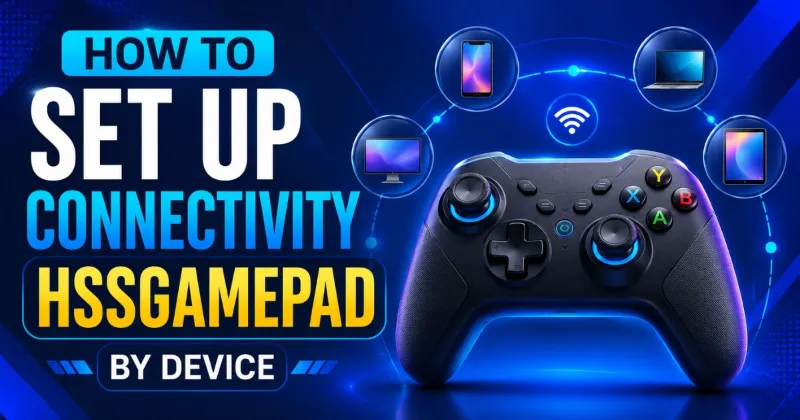
Connecting on Android (Bluetooth)
- Hold the controller’s pair button (usually labeled “Home” or marked with a Bluetooth icon) for 3–5 seconds until the LED starts flashing rapidly that’s pairing mode.
- On your phone, go to Settings > Connected Devices > Bluetooth and turn Bluetooth on.
- Look for “Connectivity HSSGamePad” (or a similar name) in the available devices list and tap it.
- Wait for the LED to switch from flashing to solid that confirms a successful pair.
- Open a controller-supported game or use a mapping app if the game doesn’t natively recognize gamepads.
Connecting on Windows PC (2.4GHz Dongle)
- Plug the USB dongle directly into a rear USB port on your PC front-panel ports and USB hubs are more likely to drop the signal.
- Power on the controller. Windows should install a generic HID driver automatically within a few seconds.
- Check Settings > Bluetooth & Devices > Devices to confirm it’s listed as connected.
- If a game doesn’t detect it, open Steam’s Big Picture Mode or the game’s own controller settings and re-scan for input devices.
Connecting on iOS
- iOS requires the controller to support Apple’s MFi (Made for iPhone) framework for full compatibility check your specific Connectivity HSSGamePad model’s box or manual for an MFi badge before assuming full support.
- Put the controller in pairing mode the same way as Android (hold the pair button until the LED flashes).
- Go to Settings > Bluetooth, find the controller, and tap to connect.
- Not all iOS games support external controllers even when the OS recognizes one this is an app limitation, not a connectivity fault, so check the game’s own settings menu first if buttons aren’t responding.
Connecting on Smart TVs and Android TV Boxes
- Enable Bluetooth from the TV’s settings menu (usually under Remotes & Accessories).
- Put the HSSGamePad into pairing mode.
- Select it from the TV’s device list.
- Cloud gaming apps (like GeForce NOW or Xbox Cloud Gaming) generally recognize the controller automatically once paired at the OS level — no extra app-side pairing needed.
Also Read This: WallPostMedia com: Review 2026 What This Multi-Niche Blog Actually Is, and Whether It’s Worth Your Time
Common Connectivity HSSGamePad Problems and How to Actually Fix Them
This is where most guides get vague. Here’s a straight diagnostic path instead of a generic “restart your device” list.
A cause most guides skip: old Bluetooth stacks. If you’re on an older PC or a budget phone still running Bluetooth 3.0 or earlier, pairing may appear to succeed but the connection will be unstable or refuse to hold. There’s no software fix for this it’s a hardware ceiling, and switching to the 2.4GHz dongle or a wired connection is the actual solution, not more re-pairing attempts.
| Symptom | Most Likely Cause | Fix |
|---|---|---|
| Won’t enter pairing mode | Low battery or a stuck pair button | Charge fully for 30+ minutes before retrying |
| Shows up but won’t connect | Stale Bluetooth cache on the host device | Forget/unpair the device, restart Bluetooth, re-pair fresh |
| Connects, then drops randomly | Wireless interference (Wi-Fi routers, other Bluetooth devices, microwaves) | Move the 2.4GHz dongle or move closer; switch to wired if it persists |
| Recognized but buttons don’t work | Wrong input mode (D-Input vs X-Input) | Switch input mode see below |
| Works on one device, not another | Device-side driver or OS Bluetooth version issue | Confirm the host supports Bluetooth 4.0 or higher |
| Dongle not detected at all | USB hub or front-panel port bottleneck | Plug directly into a rear/motherboard USB port |
D-Input vs X-Input: The Silent Cause of “Buttons Don’t Work”
Multi-platform controllers like the Connectivity HSSGamePad often support two input protocols, and this trips up more people than any wireless issue:
- X-Input is the Xbox-style protocol most modern PC games expect by default. Buttons, triggers, and vibration usually map correctly out of the box.
- D-Input is the older, generic protocol. Some games especially older PC titles and emulators expect this instead, and if the controller is in the wrong mode, buttons can appear “dead” even though the connection itself is perfectly fine.
If a game isn’t reading your inputs correctly despite a solid connection, check for a small mode-switch button on the controller (often labeled X/D or with a small toggle) before assuming it’s a connectivity fault at all. This one detail resolves a surprising number of “my gamepad won’t work” reports that have nothing to do with pairing.
Getting the Best Performance Once You’re Connected
- Use the 2.4GHz dongle for competitive PC play it consistently edges out Bluetooth on input lag because it isn’t sharing bandwidth with your phone’s Bluetooth traffic or nearby Wi-Fi noise.
- Keep firmware updated if the manufacturer provides an update tool firmware revisions often quietly fix pairing stability issues that no user-side setting can solve.
- Charge before long sessions, not during some controllers see minor input lag while actively charging over USB during wireless play, so top up beforehand if you’re playing competitively.
- Space matters more than people expect walls, other 2.4GHz/5GHz devices, and even a crowded USB hub can degrade signal quality well before you’re near the controller’s rated range.
Must Read This Post: VocalNewsMedia com: What It Is and How to Evaluate It
Preventive Care: Avoiding Connectivity HSSGamePad Issues Before They Start
- Re-pair from scratch every few months even if the connection seems fine Bluetooth caches accumulate small errors over time.
- Store the USB dongle somewhere it won’t get lost it’s the single most common reason people give up on 2.4GHz mode and fall back to a worse Bluetooth connection.
- Keep the controller’s firmware current if updates are available; connectivity fixes are one of the most common things firmware updates address.
- Avoid pairing to more than one device at a time when possible some models hold only one active Bluetooth connection, and a “ghost” pairing to an old device can block a new one silently.
FAQs About Connectivity HSSGamePad
Why won’t my HSSGamePad connect to my phone?
Usually a Bluetooth cache issue. Unpair/forget the device in your phone’s Bluetooth settings, restart Bluetooth, put the controller back into pairing mode, and reconnect as a fresh device.
Is 2.4GHz or Bluetooth better for HSSGamePad?
For PC gaming, especially competitive titles, the 2.4GHz dongle is usually more stable and has lower input lag since it doesn’t share bandwidth the way Bluetooth does. For phones, tablets, and TVs, Bluetooth is typically your only option and works well for casual play.
Can I use HSSGamePad wired and wireless at the same time?
Most models use one active connection mode at a time. Plugging in a USB cable while paired over Bluetooth usually switches the controller to wired mode automatically.
Why do my buttons not work even though the controller is connected?
This is often a D-Input/X-Input mismatch rather than a connectivity problem. Check for a mode toggle on the controller and switch it, especially for older PC games or emulators.
Does the HSSGamePad work with Smart TVs?
Via Bluetooth, as long as the TV has Bluetooth support and is compatible with generic HID gamepads. Most cloud gaming apps will recognize it automatically once it’s paired at the system level.
What Bluetooth version do I need for a stable connection?
Bluetooth 4.0 or higher on the host device. Older Bluetooth 3.0 hardware can technically pair but often won’t hold a stable connection.
Conclusion
Connectivity HSSGamePad problems almost always come down to one of a handful of fixable causes the wrong mode for your device, a stale Bluetooth pairing, a USB port that can’t keep up, or an input-mode mismatch that has nothing to do with the wireless connection at all. Once you know which of the three connection modes fits your setup and how to reset it properly, most issues take a couple of minutes to resolve rather than an afternoon of guesswork.
If you’re setting up for the first time, start wired to confirm the controller itself works, then move to Bluetooth or the 2.4GHz dongle once you know the hardware is good it’s the fastest way to isolate whether a problem is the controller, the connection mode, or the device you’re pairing it to.

Team Home Spacess shares simple, practical design ideas that work for real families. The team focuses on cozy décor, soft colors, and natural textures that make a space feel truly lived-in. From everyday decorating tips to creative home projects, Team Home Spacess is dedicated to helping readers create warm, comfortable, and inviting spaces with a fresh and personal touch.